Follow these simple steps to log in to your Facebook account:
Step 1: Start with a New Browser Session
Step 2: Review Your Account Information
Your account details will look like this:
100035373668889|SM@HICsJf8e|2VA7WVPSPLB4L7TTYB2EFCKAUJ5Z67X7|[email protected]|bnw3ipV9h8|[email protected]|02/09/1996
Here’s what each part means:
-
UID: 100035373668889 (This is your Facebook User ID)
-
Password: SM@HICsJf8e (This is your Facebook account password)
-
2FA Code: 2VA7WVPSPLB4L7TTYB2EFCKAUJ5Z67X7 (Two-Factor Authentication code)
-
Primary Email: [email protected] (This is the email linked to your Facebook account)
-
Email Password: bnw3ipV9h8 (This is the password for your email account)
-
Backup Email: [email protected] (This is a backup email address in case you need it)
-
Date of Birth: 02/09/1996 (This is the birthdate registered on your Facebook account)
Step 3: Log In to Facebook
-
Go to Facebook:
-
Enter Your Email and Password:
-
Enter Your 2FA Code (if asked):
-
Facebook might ask for a Two-Factor Authentication (2FA) code. Use the code provided (2VA7WVPSPLB4L7TTYB2EFCKAUJ5Z67X7).
-
If you don’t have it, you can get the code here: accwoow.com//tool/get-2fa
-
Click 'Log In':
Step 4: If Facebook Requires a Confirmation Code Sent to Your Email
-
Log In to Your Email:
-
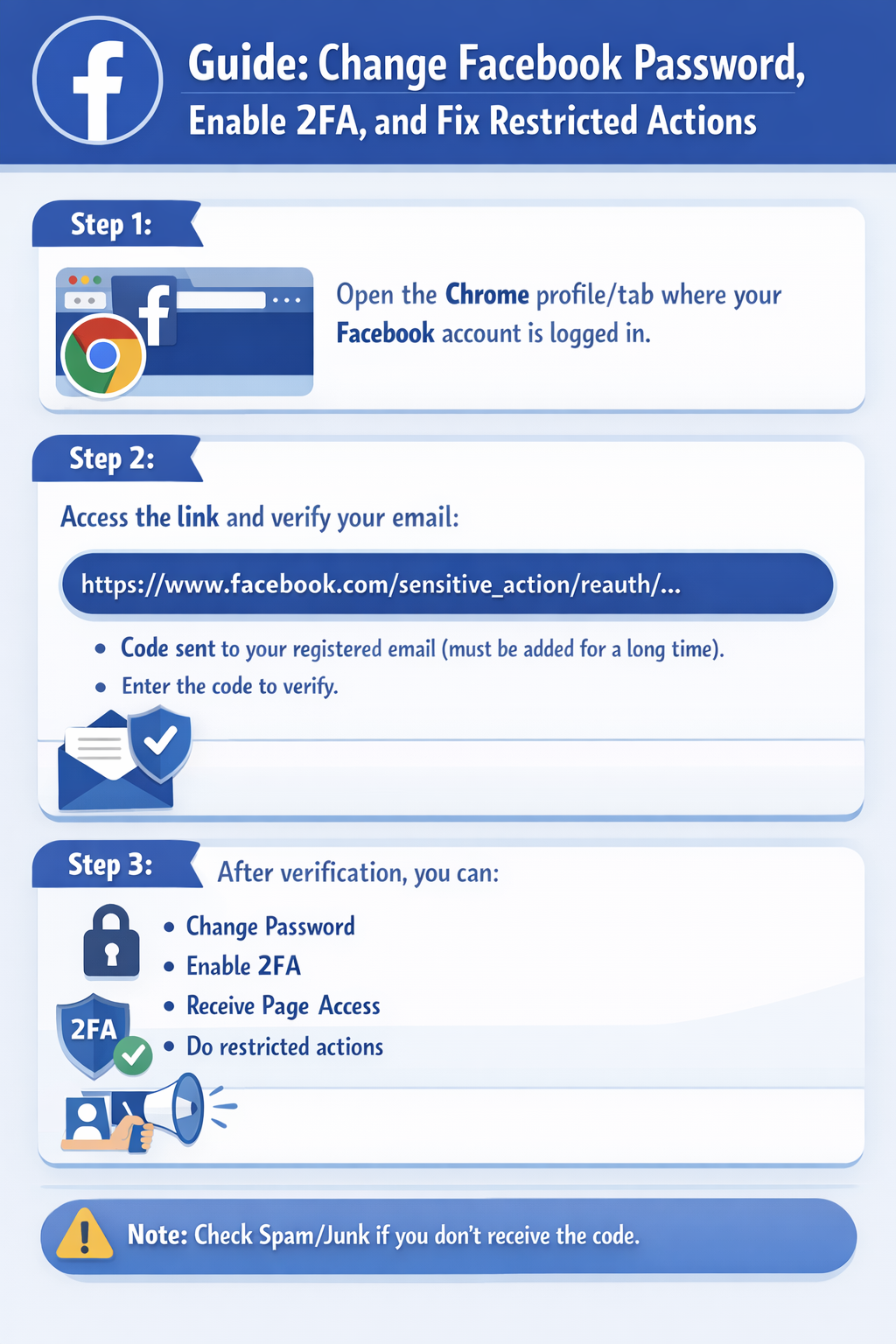
If Facebook asks for a confirmation code, you’ll need to check your email.
-
Go to Hotmail.com and log in with your email ([email protected]) and password (bnw3ipV9h8).
-
Retrieve the Code:
-
Enter the Code on Facebook:
Step 5: If You Can’t Log In, Try This
If you have trouble logging in, follow these steps:
-
Change Your IP Address:
-
Clear Your Browser Cache:
-
Press Ctrl + Shift + Delete on your keyboard.
-
Select all options to clear your browser’s cache and cookies, then confirm.
-
Try Logging In Again:
Important Reminder: